

Overview
Ambient Engine is a macOS application that generates evolving ambient textures by combining sample import, slice editing, random playback, and modulation.
Once configured, sound continuously changes and develops autonomously—without the need for performance.
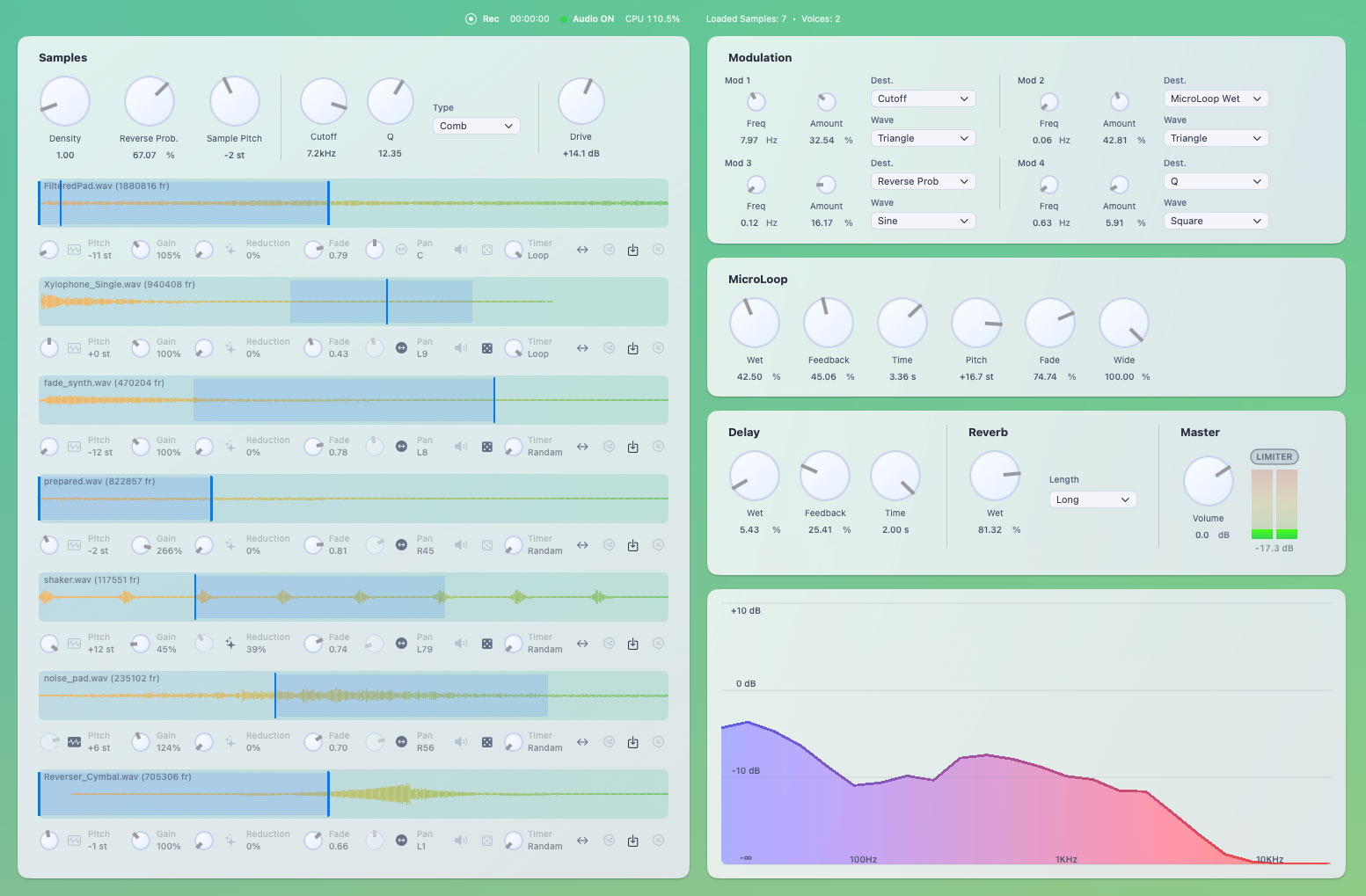
Loaded samples are played simultaneously across multiple voices. By combining density, playback direction, pitch, and effects, you can easily create soundscapes for ambient music, visual works, installations, and games.
Installation
Mount the .dmg file downloaded from the purchase confirmation email.
Copy the Ambient Engine application from the disk image to a folder of your choice (such as Applications).
The software license agreement PDF file is in the same image, so please check it before use.
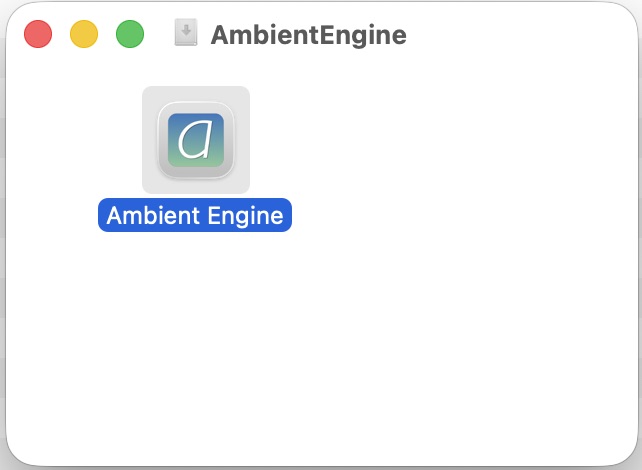
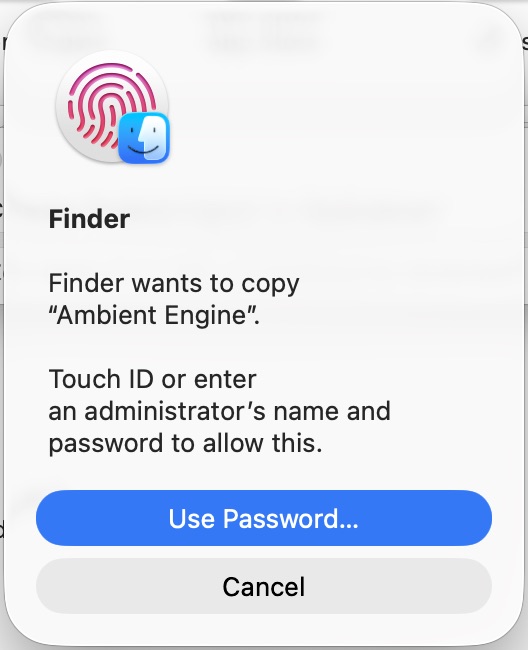
If prompted for a password or Touch ID during copying, follow the on-screen instructions.
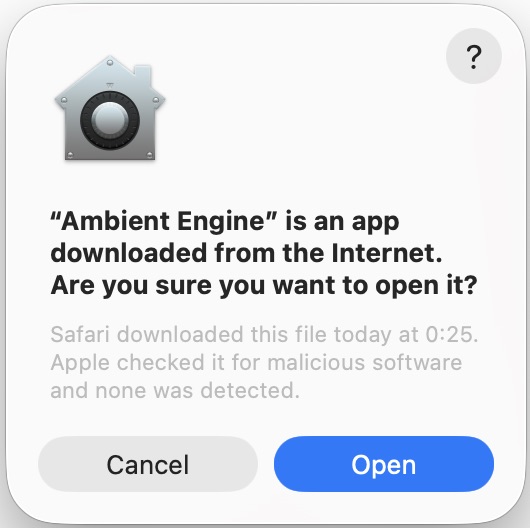
On first launch, a dialog will appear stating:
“‘Ambient Engine’ is an application downloaded from the Internet. Are you sure you want to open it?”
Select Open.
During updates, you may see the following dialogs:
“‘Ambient Engine’ is different from the version previously used. Are you sure you want to open it?”
“‘AmbientGen Reduction’ is different from the version previously used. Are you sure you want to open it?”
Please select Open in both cases.
Note: AmbientGen Reduction is an internal effect module used by Ambient Engine.
Basic Operation
- Import sample files (WAV / AIFF / M4A) using the Import Sample
Importin each sample player. - Drag the start and end bars on the waveform display to set the playback slice range.

- Adjust
DensityReverse Prob.., andSample Pitchin the top panel.
- Switch the following random settings as needed in each sample player
- Random Pitch
- ON

- OFF

- ON
- Random Range
- ON

- OFF

- ON
- Random Pan
- ON

- OFF

- ON
- Playback Direction
- Forward

- Backward

- Random

- Forward
- Random Sample
- ON

- OFF

- ON
- Random Pitch
- To apply filtering to all samples, adjust Cutoff and Q.
Adjust overall sample volume using Drive. - Configure
Modulation / MicroLoop / Delay / Reverb / Masterin the right-side panel.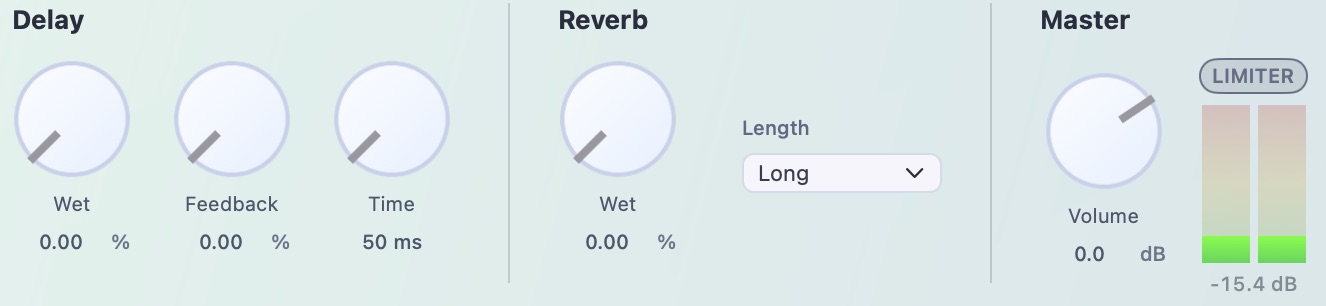
- If necessary, start recording from the
Recbutton at the top, press the STOP button, and select the file saving format.
Header Display
The header at the top of the application provides real-time system and session information:

Rec / StopRec / Stop buttons and recording time elapsed display- Audio Engine ON / OFF toggle
- Real-time CPU usage
- Loaded Samples: Number of imported samples
- Voices: Number of currently active voices
Window Operations
- Full Screen
- Shortcut:
⌘F - Menu:
Window > Enter Full Screen
- Shortcut:
- Toggle Header / Panel Visibility
- Shortcut:
⌘⌥⇧P - Menu:
Window > Toggle Header/Panel
- Shortcut:
- MIDI Mapping
- Shortcut:
⌘M - Menu:
Window > MIDI Mapping
- Shortcut:
Numeric Input
Each knob includes a numeric input field for precise control.
- Click the value field to enter numbers directly
- Press Enter or click outside the field to confirm
- Out-of-range values are ignored and reverted
- Units may be displayed, but only numeric values should be entered
Input Value Ranges
- Sample Pitch (Top Panel)
- Semitones:
-12〜+12
- Semitones:
- Sample Player
- Pitch:
-12〜+12 - Gain / Reduction / Pan:Percentage values
- Fade:
0.00〜1.00
- Pitch:
- Sample Player Timer
- Values
< 1010: Random 10101000010,000: Milliseconds10000Over 10,000: Loop mode
- Values
Main Controls(Top Panel)

- Density
- Controls trigger density for players with Timer set to RandomTimer が Random
- Range:
0.1〜10.0
- Reverse Prob.
- Probability of reverse playback(
0〜100%) - Available only when Playback Direction is set to
Auto
- Probability of reverse playback(
- Sample Pitch
- Global pitch for all samples
- Range:
-12〜+12 st(0.5= original pitch)
- Filter
- Type:Hi / Band / Low / Comb
- Cutoff:
20Hz〜20kHz - Q:
0.1〜20
- Drive
- Global drive amount
- Range:
+0.0〜+24.0 dB
Sample Player
You can load one audio sample into each sample player.

- Waveform Display: Shows slice range and playback position
- Pitch:Per-voice pitch(
-12〜+12 st) - Gain:Waveform gain (
0.0〜3.0) - Reduction:Bit reduction(
0.0〜1.0) - Fade:Fade-in/out strength(
0.0〜1.0) - Pan:
パン -1.0〜+1.0(L / R / C) - Mute:Toggle mute (ON
 / OFF
/ OFF )
) - MIDI IN: MIDI input toggle (ON
 / OFF
/ OFF )
)
- When ON, the Timer is disabled and samples are triggered when a MIDI Note is received.
- Each sample player’s MIDI channel is automatically assigned from the top: CH 1 to CH 7.
- Random Range:Randomize playback range
- Timer:Trigger interval (Random / 10ms – 10s / Loop)
- Random:Randomly selects from globally enabled samples
- Loop:Playback loops from the start bar to the end bar.
(When Random Range is ON, the entire randomly selected playback range is played.)
- Playback Direction:(Forward / Reverse / Auto)
- Random Sample:Switch Global / Voice Only
- Global : Randomly selects from globally enabled samples
- Voice Only: Uses only the sample loaded in this voice
- Import:Load a sample into this player
- Unload
 Remove the sample (available when Mute is enabled))
Playback Range
Playback range can be adjusted only when Random Range is OFF.
Drag the start and end bars on the waveform to define the slice.
Modulation
- Ambient Engine includes four modulation units (Mod 1–4).
- Each unit allows configuration of:
- Target: Parameter to modulate
- Waveform: Modulation curve
- Freq: Modulation rate
- Amount: Modulation depth
Modulation Targets
- Density
- Reverse Prob.
- Sample Pitch
- Filter
- Drive
- Delay
- Reverb
- MicroLoop
Note: At high modulation rates, knob animations may appear inactive to reduce CPU load.
MicroLoop
MicroLoop continuously generates short loops to create granular textures and sustained tones.
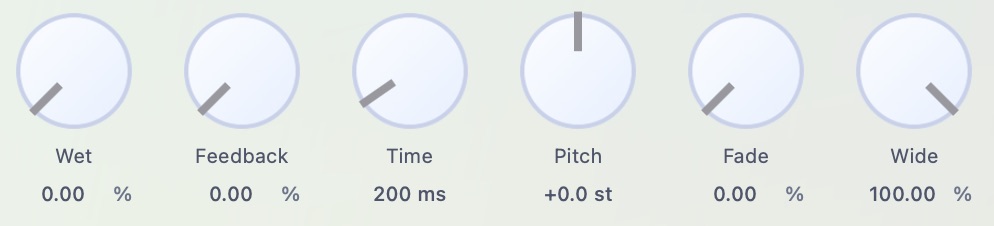
- Wet:
0〜100%- The dry signal is attenuated by a ratio of
1 - wet
- The dry signal is attenuated by a ratio of
- Feedback:
0〜100%- Remaining amount of the previous loop
- Time:
0.01〜5.0seconds - Pitch:
-24〜+24(semitones) - Fade:
0〜100%- up to 50% of loop length
- Wide:
0〜100%- Stereo width
Delay / Reverb / Master / Spectrum
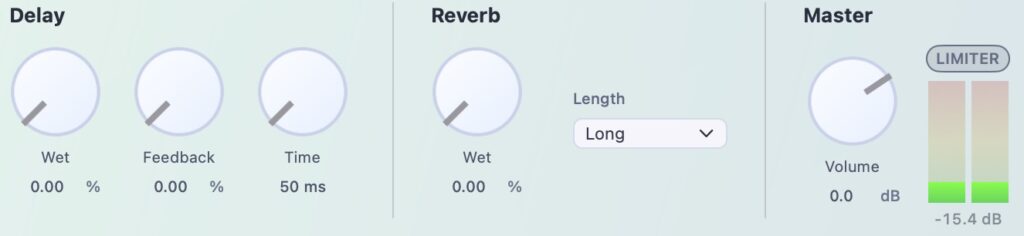
- Delay
- Wet:
0〜100% - Feedback:
0〜100% - Time:
0.05〜2.0seconds
- Wet:
- Reverb
- Wet:
0〜100% - Length:Short / Medium / Long
- Wet:
- Master
- Volume:dB scale
- Limiter:ON / OFF
- Output leve meters(L / R)
- Spectrum
- Output spectrum display after the limiter
MIDI Mapping
In the MIDI Mapping window, you can assign MIDI controller knobs/keys, pitch bend, and more to Ambient Engine knobs and toggles. (Supported in v1.1)
1. Press ⌘M` (or `Window> MIDI Mapping`) to open the `MIDI Mapping` window. This enables MIDI Mapping mode, and a  badge appears at the top-left of the app panel.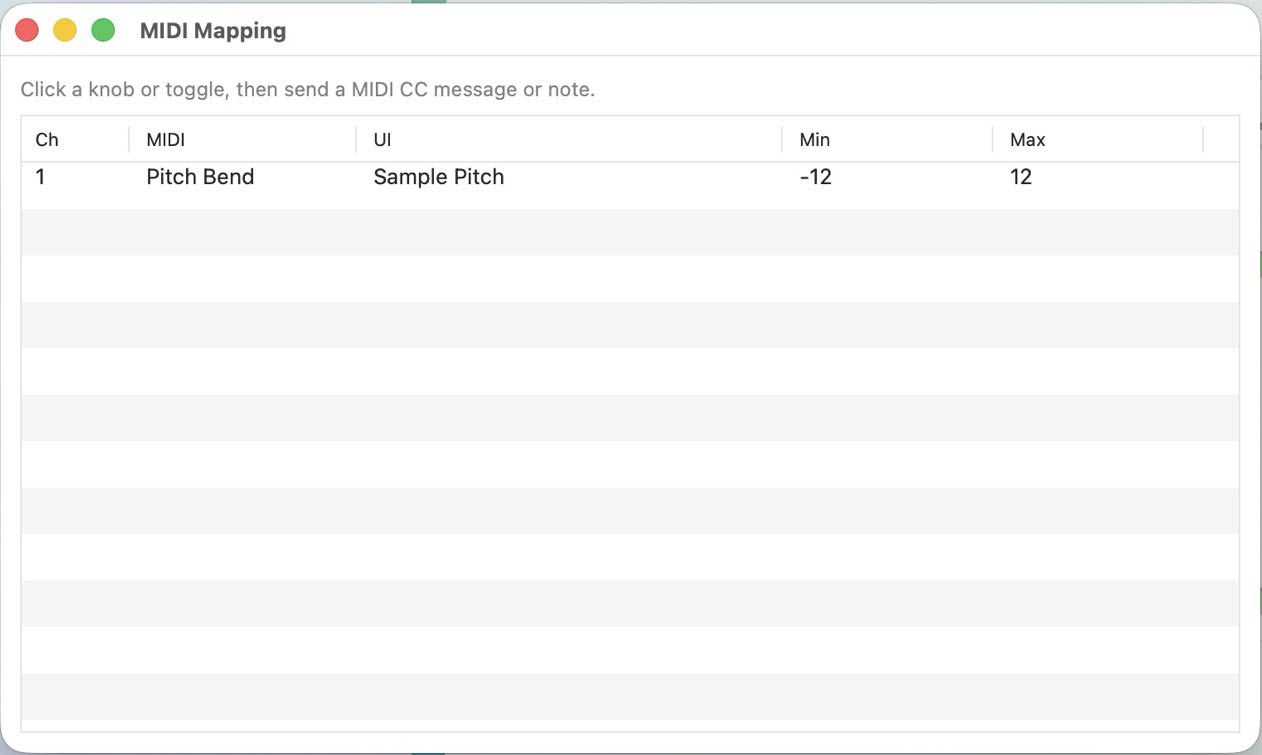
2. Click the knob or toggle you want to assign. A blue translucent overlay appears to indicate it’s selected.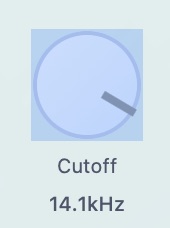
3. Operate your MIDI controller to send a message. (You can map CC / Note / Pitch Bend.)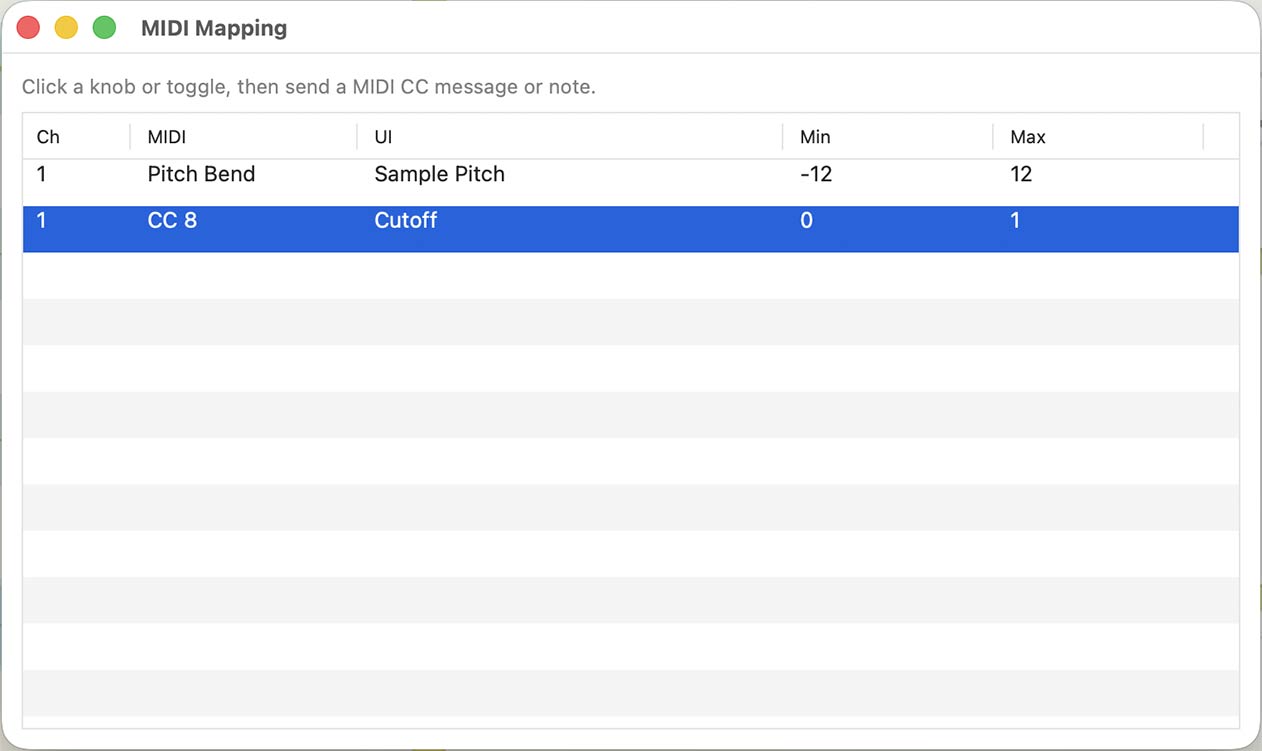
4. If needed, edit `Min` / `Max` in the `MIDI Mapping` window to adjust the operating range.
5. To remove unwanted assignments, click the x button in the list, or select a row and press the Delete key.
6. When finished, close the `MIDI Mapping` window.
MIDI mapping information is saved in the preset.
Presets
- Presets can be saved and loaded via the
FileFile menu. - Shortcuts
- Save:
⌘S - Save As:
⌘⇧S - Loed Preset:
⌘⇧O
- Save:
Preset files .ambp are folder-based and include:
preset.jsonsamples/(Samples used)
Imported samples are automatically converted to WAV format (stereo / 32-bit / sample rate follows your audio interface settings) when saved, and stored in the samples directory. The original file extension is not preserved.
When saving a preset, if there are unused files in the samples directory, a confirmation dialog will appear asking whether you want to delete the unused files.
Recording
- Start recording with
Recin the header Stopwith Stop- Choose output format when saving
- M4A(192kbps)
- AIFF(16bit)
- WAV(16bit)
Note: Sample rate follows the audio device settings.
Canceling the save dialog will discard the recording.
Settings
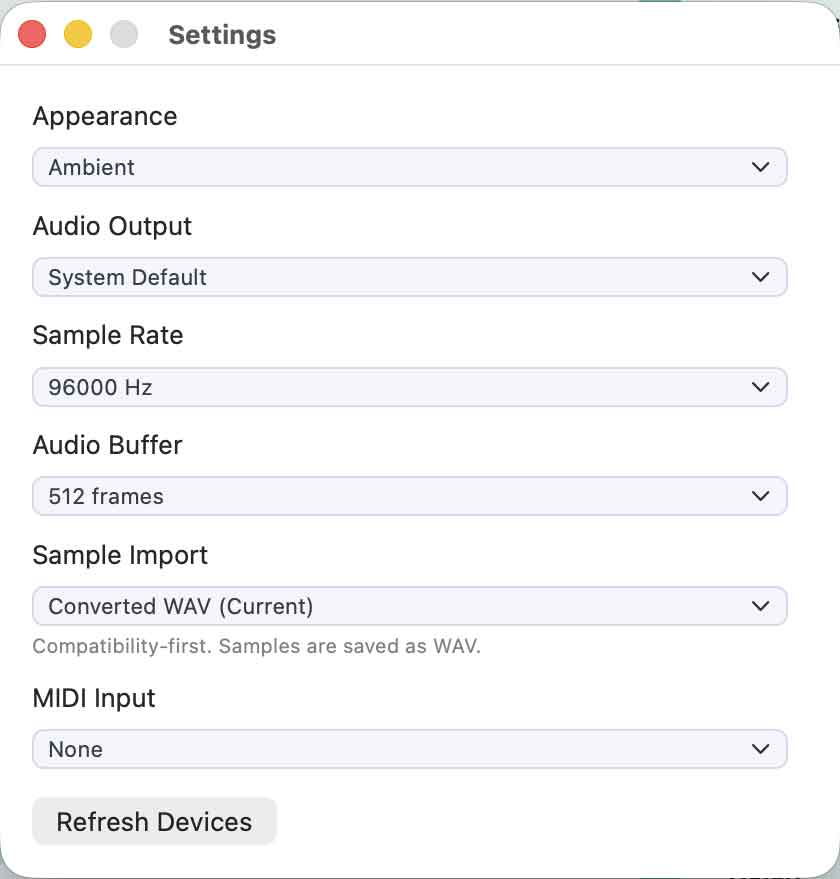
- You can configure the following in Settings:
- UI Theme (Ambient / Classic)
- Output audio device
- Sample rate
- Audio Buffer
- Lower values improve responsiveness, but increase CPU load and may introduce noise.
- Sample Import
- When saving a preset, Ambient Engine saves audio samples as WAV files at the sample rate set in Settings. If you want to keep the original format you imported, select “Keep Original File”. However, the software will convert the audio on load, so loading will take longer. Unless you have a specific reason, use “Converted WAV”.
- MIDI Input
- MIDI devices connected to your Mac are shown here. Ambient Engine will accept MIDI input from the selected device. Ambient Engine only accepts MIDI input and does not output MIDI.
- Click Refresh Devices to detect newly connected audio and MIDI devices.
Integration with Other Softwares
- By using virtual audio devices such as BlackHole, audio can be routed to other DAWs or streaming software.
System Requirements
- Mac with Apple Silicon
- macOS 14 or later / Recommended: macOS 15.7.4 or later
- Display resolution 1560 × 980 pixels or higher
(External display required for 13-inch M1 MacBook / M1 MacBook Air)